
Places & pins
Every place gets a pin that says what it is: a cup for the café, a loaf for the bakery, a photo for the roastery. Set the look once for the whole map, and let single places stand out.
- Ember & Oak Roastery: Paul-Lincke-Ufer 21, 10999 Berlin
- Ember & Oak · Hackescher Markt: Neue Promenade 4, 10178 Berlin
- Ember & Oak · Rosenthaler Platz: Rosenthaler Straße 1, 10119 Berlin
- Ember & Oak Bakehouse: Prinzenstraße 85, 10969 Berlin
- Bean shop · Karl-Marx-Allee: Karl-Marx-Allee 34, 10178 Berlin
- Coffee cart · Friedrichstraße: In front of the station, Friedrichstraße, 10117 Berlin
- Ice cream · Gendarmenmarkt: Markgrafenstraße 36, 10117 Berlin
- Head office: Rosa-Luxemburg-Platz 2, 10178 Berlin
Live: this is the plugin itself, not a picture. Every pin here looks different: drop, circle, square, icon only, small, big, each in its own colour.
A pin for every kind of place
66 icons
Sorted into six groups (general, food and drink, shops, getting around, leisure, services) and searchable: type “bakery” and there it is.
Four shapes, any size
Drop, circle, square or just the icon. Pick small, medium or large, or any size in between with the slider.
Your colours
Pins follow the map colour, or a place gets its own. Colours you pick are kept for your next maps.
A photo as the pin
A place with photos can show its cover photo as the pin. Names under the pins, if you like, and a bigger pin for what matters most.
Icon, colour and photo for each place
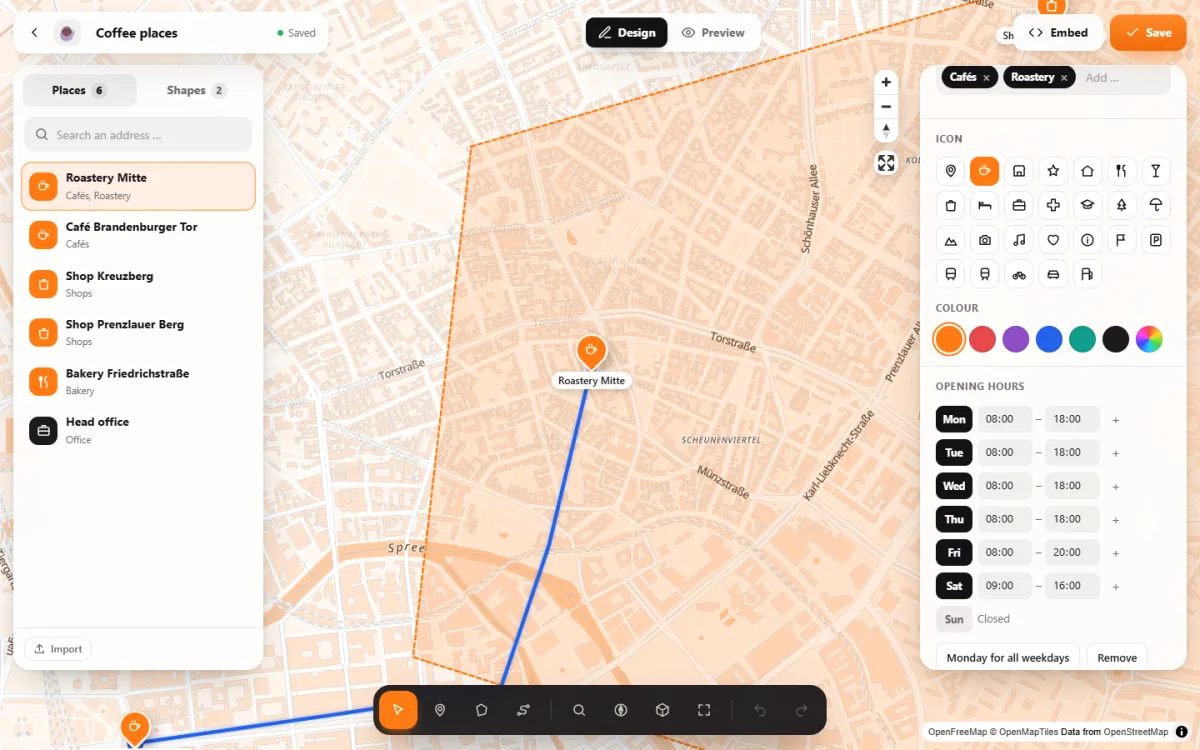
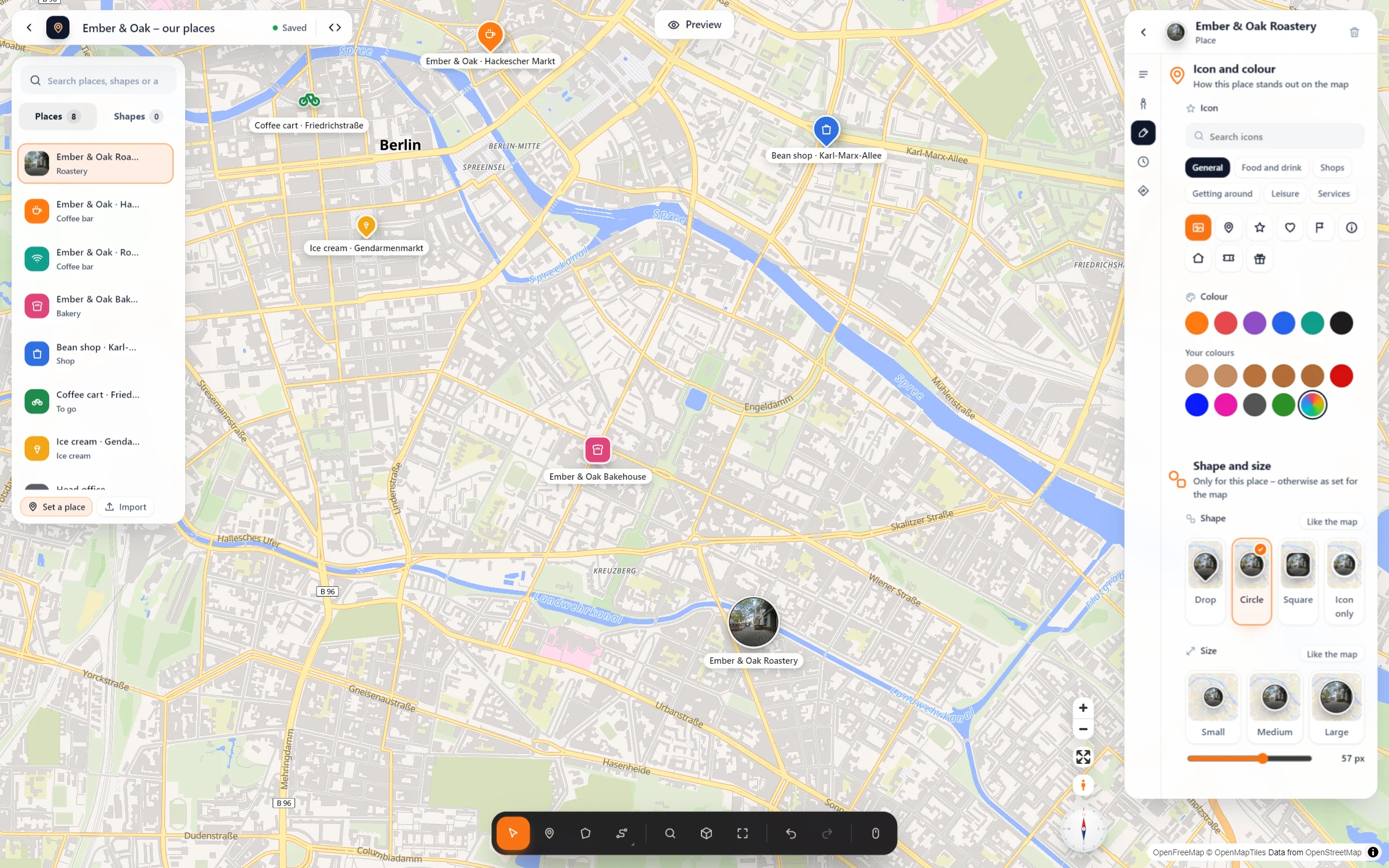
From the first pin to the whole map
- Set a place. Choose “Set a place” in the tool bar and click the map. You can also search an address or click a shop that is already on the map.
- Give it an icon and a colour. In the place’s panel under “Icon and colour”. “Shape and size” changes only this place; everything else follows the map.
- Choose the look for all. Map settings → Pins and labels: shape, size and “Names under the pins”. Select several places (Shift and drag a frame) to change them together.
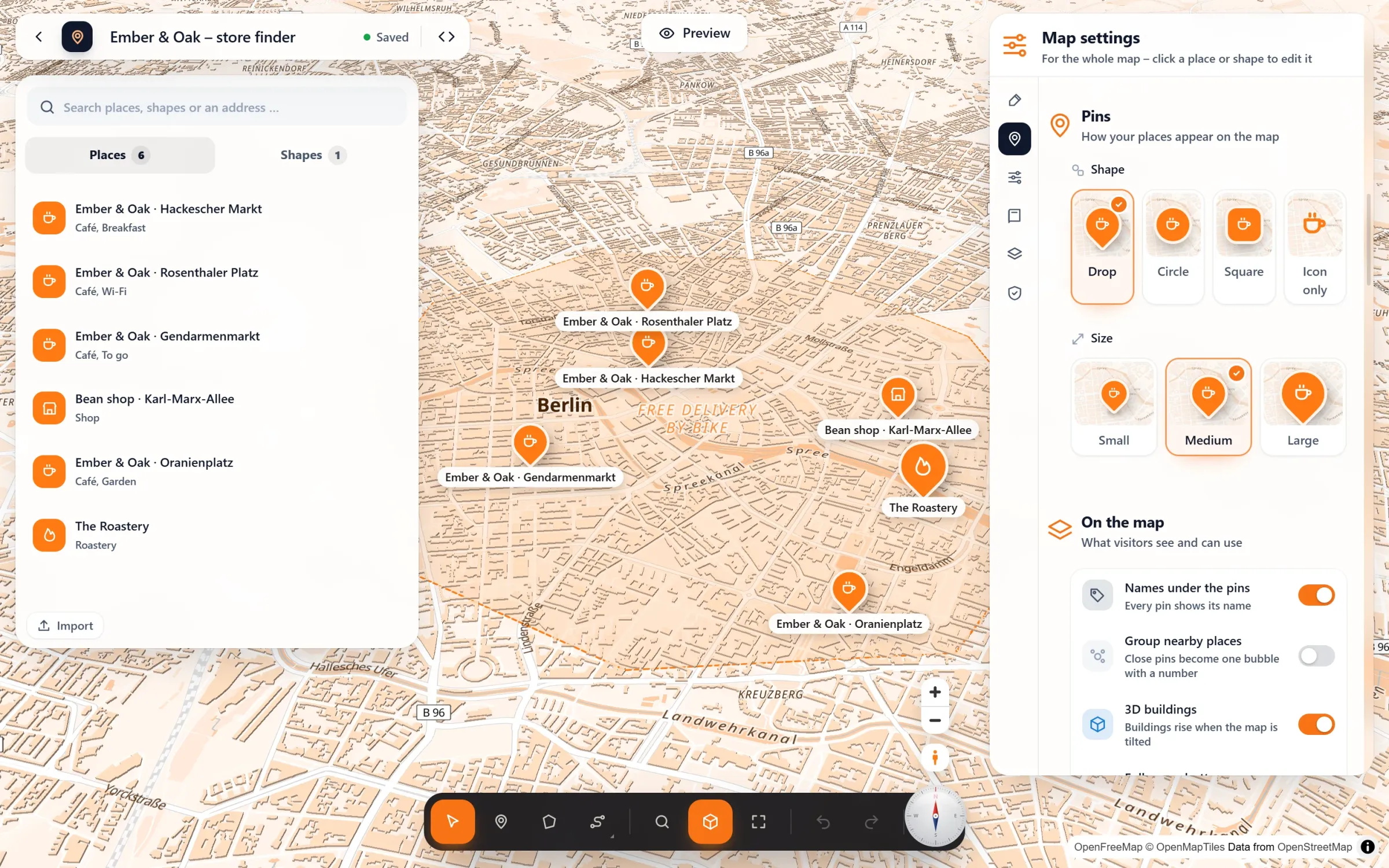
Questions people ask
Can one place look different from the rest?
Yes. Icon, colour, shape and size can be set per place. Whatever you leave alone follows the settings of the whole map. Change those, and all the others change with them.
How do I make an important place stand out?
Switch on “Highlight (bigger pin)” in its panel. With group bubbles on, “Never group” keeps it out of the bubbles, so it is always visible.
Can I upload my own icon?
Not as an icon file. You can use a photo from your media library: add it to the place, then choose “Photo” among the icons, and its cover becomes the pin.
Is it free?
Yes. All icons, shapes, sizes and colours are part of the free plugin, with no limit on places. What a pin opens is up to you (see popups).
Free in Map Studio
Install the plugin, open Map Studio and start designing. You need no account and no API key.