
Google My Maps alternative for your website
Google My Maps is a quick way to put pins, lines and areas on a map. On your own website, though, it stays a Google iframe. It looks like Google and sends data to Google, and you can change very little about it. This guide shows how to take your map with you and design it in your own look.
- Export your My Maps map as KML. Points, lines and areas come along.
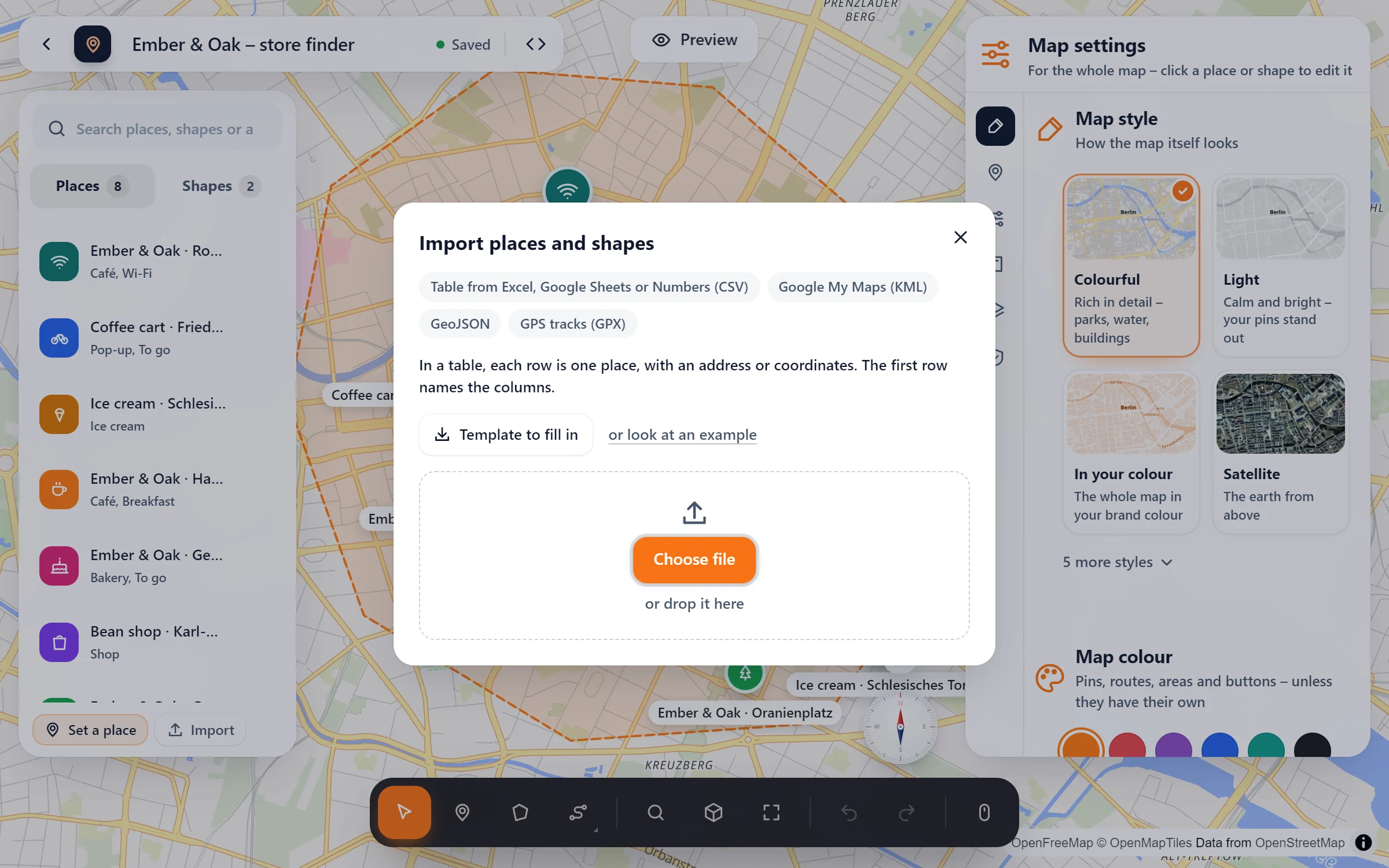
- Import it into Map Studio in WordPress: places, routes and areas are there, folder names become categories.
- Then design it with a map style, your colours, icons, popups and a list with search. You need neither Google nor an API key.
Why look beyond My Maps
- Looks: on your site, it looks like Google, not like your brand.
- Privacy: the embed loads from Google; in the EU it usually needs consent first. See Google Maps and the GDPR.
- For visitors: no list of places with search, “Near me” or opening hours.
- Ownership: the map lives in a Google account, not on your website.
Moving your map, step by step
- Export from My Maps: open your map, click the three dots next to its title, choose Export to KML/KMZ, and tick the option to export a .KML file instead of .KMZ.
- Install Map Studio: in WordPress, go to Plugins → Add New, search for “Devenzi Map Studio” and activate it. It needs no account and no key.
- Import: Map Studio → New map → Import → “Google My Maps (KML)”, then pick the file. Points become places with their name and description, lines become routes, areas become areas, and folder names become categories. Parts of one placemark (as in Google Earth exports) all come along.
- Design: pick a map style and your colour, give places icons and popups with photos and opening hours, switch on the list.
- Replace the iframe on your page with the Map Studio block, the Elementor widget or a shortcode.
My Maps vs. Map Studio
| Google My Maps (embedded) | Map Studio | |
|---|---|---|
| Where the map lives | your Google account | your WordPress site |
| Look | Google’s, few options | six map styles, your brand colour, 3D |
| Popups | name, description, photos | text, photos, opening hours, buttons |
| List for visitors | in the side panel of the full map | next to or below the map, with search, filter and “Near me” |
| Data to Google | yes | no |
| Load after consent | through your consent tool | built in |
Frequently asked questions
Do my icons and colours from My Maps come along?
The places, lines, areas, names, descriptions and folders come along. Icons and colours you pick again in Map Studio, from 66 icons and any colour. That is quick, and the result matches your site.
What about KMZ files?
Export as KML: in the My Maps export dialog, tick the option for a .KML file instead of .KMZ.
Can I import a spreadsheet instead?
Yes. Save it as CSV; Map Studio finds the coordinates for the addresses itself. See import.
Is it free?
Yes. The import, the editor, the list and the map styles are in the free version on WordPress.org.
Take your map with you – free
Map Studio on WordPress.org: install, import your KML, design.